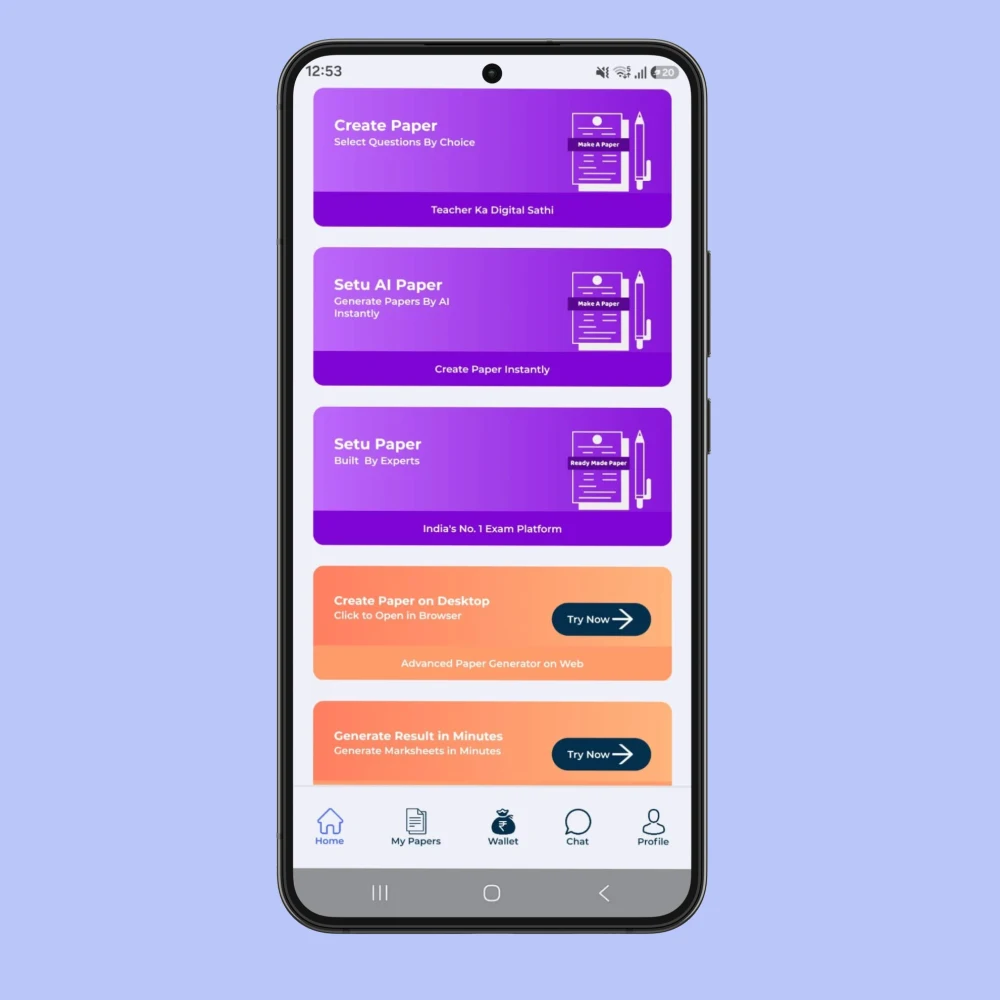
Prepare the information for an online question paper maker
Before starting, keep the class details, prescribed book, chapters and assessment brief available. Confirm the school profile that should appear on the paper. This is particularly useful for a teacher who works with more than one class or prepares several subjects, because a familiar account can still have the wrong class selection for the next task.
A desktop or laptop can make long-paper review easier by showing more of the page at once. However, the important point is to inspect the actual output rather than assuming that a successful selection means the final layout is ready. Check both the content and the printed-page view before approval.
Use the shared login for connected teaching tasks
The Shala Setu login brings paper preparation, worksheet work, lesson planning and teaching-job access under the same product entry point. This helps a teacher move between related tasks without treating each as a separate school website. Results and marksheets have their own login because that is a distinct service workflow.
When preparing an assessment, stay focused on the task required. A question paper evaluates selected learning; a worksheet can support practice before or after it; a lesson plan records the teaching sequence. Linking these activities is useful, but each still needs a clear purpose and appropriate content.
Choose PDF or Word according to your workflow
Choose a PDF when you want to preserve an approved layout for printing or distribution. Choose a Word file when further editing is needed, such as changes to local instructions or spacing. After editing in Word, compare the resulting paper with the answer key and export a fresh approved copy if needed.
External file edits should be treated as changes to that file. Do not assume they automatically update the version saved in the platform or another downloaded answer document. A short final comparison prevents mismatched question numbers, marks or answers from moving into the printing process.
Make review and handover repeatable
Use a consistent naming convention, such as class, subject, assessment and date. Keep draft and final copies separate. When another person handles printing, identify the student copy explicitly and keep the answer key separate. These practical steps matter more than relying on a remembered download order.
For content planning, see the chapter-wise paper guide. For classroom support around the test, explore the lesson plan maker and worksheet pages. Together they help connect the online preparation workflow with actual teaching and follow-up.
Frequently asked questions
Which login should I use for question papers?
Use the Shala Setu app or website login for question papers, worksheets, lesson plans and jobs. The result service has a separate login.
Will a Word edit automatically change my saved paper?
Do not assume so. Review and manage an externally edited document as a separate version, and compare its questions and answers before use.
Can I prepare a paper on a computer?
Yes. Shala Setu provides a web workflow for paper preparation. Review the available selections and the final output through the product login.
Official references for your teaching context
Use these public education sources to check the prescribed book, course and available resources. Choose the relevant class, medium and academic session before applying a document to your school.
Put the guide into practice
Start with your class and taught content, then review the result before using it with students. Question papers, worksheets, lesson plans and jobs use the shared Shala Setu login.
Open Shala Setu →